Stremio Add-ons
Last updated: November 2026
Why Titles Can Appear Without Playable Streams
If a Stremio add-on shows movies or series in Aerial TV but nothing plays, the catalog may be working while a compatible stream is missing. Catalogs supply browsing lists; playback needs an add-on that returns a playable video link for the selected title or episode. On Apple TV, iPhone, iPad and Mac, Aerial TV does not support torrent/P2P results. Use sources that return direct HTTP or HTTPS video links.
Adding a Stremio Add-on
Add supported Stremio manifests through the website Sources portal. The manifest source option is labelled AerialLink in the portal; you do not install a separate Stremio app inside Aerial TV.
- 1Obtain the manifest URL from the add-on publisher. It usually ends in manifest.json; a page describing the add-on is not its manifest.
- 2Sign in to the Aerial TV Sources portal with the account you use in the app.
- 3Choose the option to connect a source, then select AerialLink.
- 4Enter the manifest in the Manifest URL field and choose Save Source.
- 5Open Aerial TV using the same account and allow the source to sync. Account-based syncing requires an active entitlement; see the Cloud Sync guide.
Catalogs vs Streams
An add-on can supply catalogs, streams or both. When you choose a title, Aerial TV requests playback options from stream sources. A successful catalog import does not establish that a stream exists for that title. The official Stremio add-on protocol describes these as separate resources.
- Catalog only — gives you titles and artwork to browse. Add a compatible stream source as well if you want playback options.
- Stream source — can return video links for a particular movie or episode. It may return no links for some titles even when it works for others.
- Catalog and streams together — can provide both browsing and playback, but each returned stream still needs to work on your device.
Check What Is Missing Before Changing Your Setup
Use the situation you see to choose the next check. These are troubleshooting cases, not exact on-screen error labels.
- The source is missing on the TV — check that the portal and TV use the intended Aerial TV account, then check account syncing. Reinstalling the catalog will not fix signing in to a different account.
- Titles appear but there are no playback options — check with the publisher that an installed add-on supplies streams, not just catalogs. Try another title or episode to distinguish a single missing result from a wider source problem.
- A stream result is unsupported — check whether it is a torrent/P2P result or lacks a direct video URL. Aerial TV on Apple platforms cannot turn a torrent result into an HTTP stream.
- A direct video link is offered but playback fails — check the source service, its access requirements and whether the link is still valid. A direct URL is a prerequisite, not a guarantee that every format or source will play.
Check One Title on Apple TV
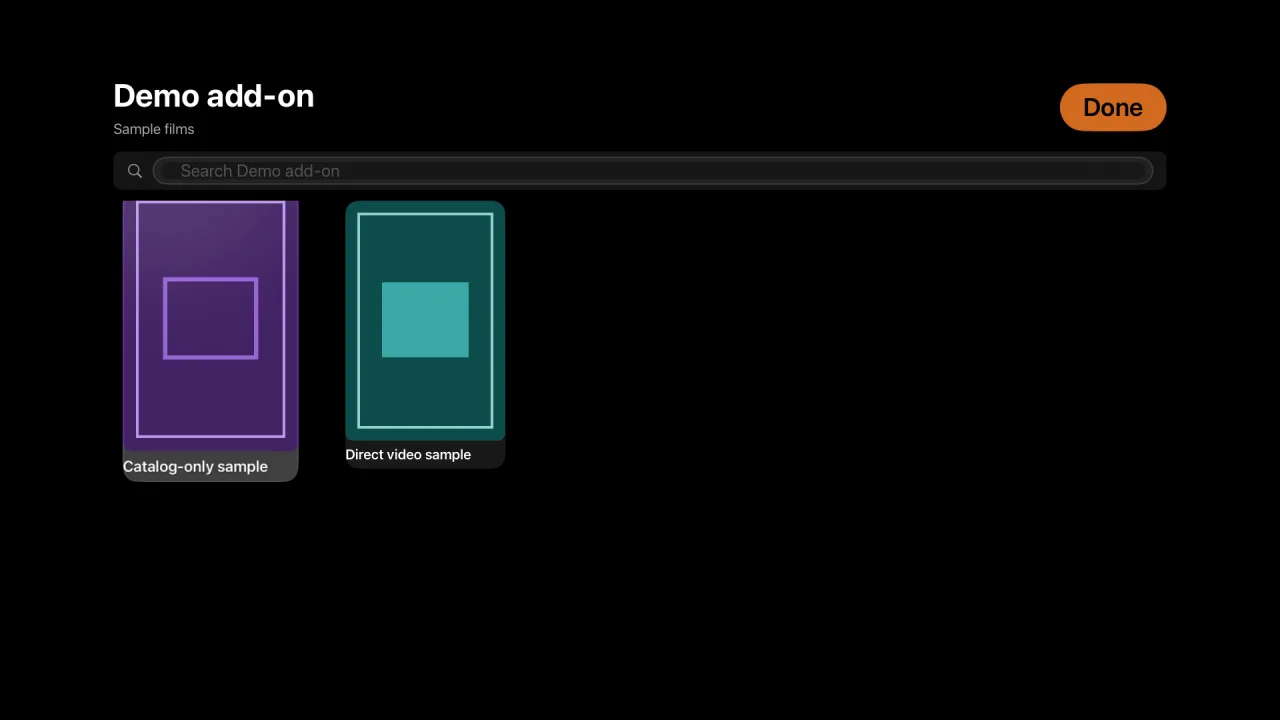
Open a title from the add-on and choose Watch On when shown. The two titles below come from a local demo add-on used in the Apple TV simulator. Both appear in the catalog. The Catalog-only sample returns no stream URL.
When Watch On Finds No Playable Sources
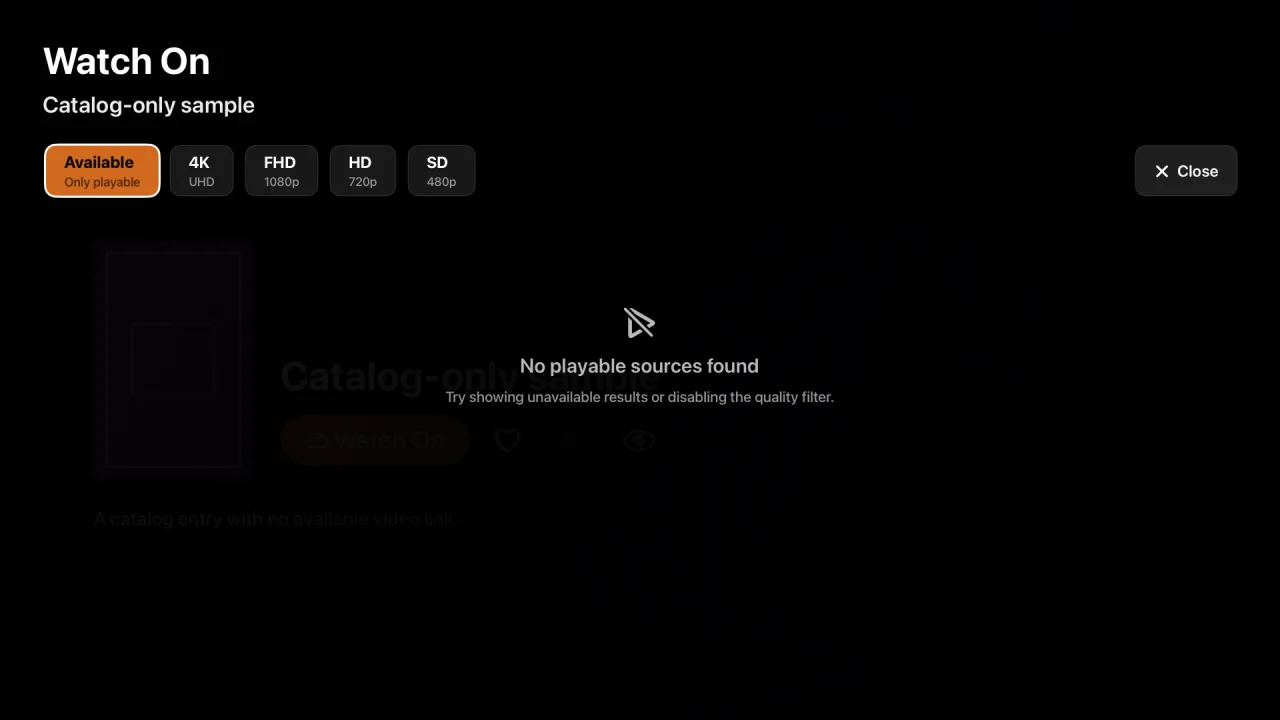
In the simulator, Watch On showed No playable sources found for Catalog-only sample. If you see this in your setup, clear any resolution filter and try another title before changing your configuration.
- No playback choices for several titles: ask the publisher whether the add-on provides streams or just a browsing catalog.
- Only a torrent result: choose a compatible direct HTTP or HTTPS source if one is available.
- A direct video option appears: try playing it. If it fails, check with the source publisher that the URL is current and that your account can open it.
Watch Progress and Account Sync
Installed add-ons sync between devices signed in to your Aerial TV account. Aerial TV cloud sync and Trakt integration are separate from a Stremio account: adding a manifest does not import or sync your Stremio account library or watch progress. Read the cloud sync guide and Trakt setup guide for the available options.